Description
The activity receive is waiting for answer of an inbound, see in adapter for more information. The process won't continue until the necessary data arrived from the external system.
Purpose of object
Receives are often used to start the process. If an external system sends any new data the process model handles the new information and spreads or transforms them for other systems. But to say in common a reception manages the communication of process and inbound adapters.
Create
-
Create a process model
-
Then point the mouse on "process", as default, this window is on the right side of the Orchestra window.
-
Click on the folder activities to see its content.
-
Click on "Receive".
-
Click on any place in your process model.
-
Integrate it in process schedule, by clicking on the reception icon and drag and drop the arrow to the to be connected item.
-
Connect it with inbound adapter, see in adapter for more information, by clicking on the adapter icon and drag and drop the arrow to the reception icon. A dashed arrow should appear.
Icon

Configuration
Label and Non-functional properties
See at common configurations for activities.
Correlation
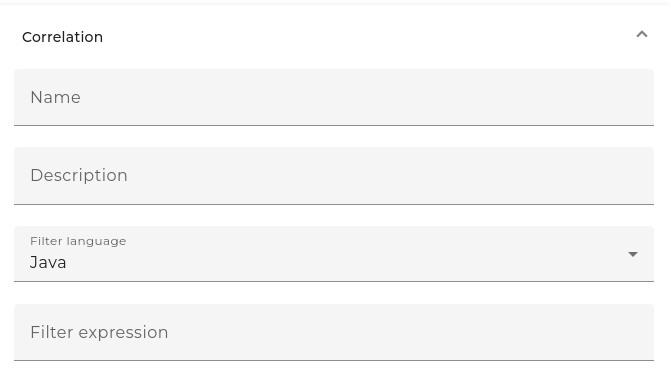
Process variable assignment
In this section you define the assignment of incoming parameters from inbound to process variables. In the following Mapping list can you see all defined process variables, changeable in properties, see in Process model for more information.

Process variables are used in further process. The incoming values from the inbound adapter have to be assigned to the correct target in process.
In section mapping you have the following fields:
- Target: The variable name of the parameter in target.
- Lang: The language of the expression. This can be either Java, XPath or -in case of Native JSON messages-JsonPath, see more information in Glossary.
- ExpressionShape: The variable, function or value, which will be assigned to target variable. To have an overview of possible values right-click on expression field, to see a choice of possible content. You can insert:
-
A variable from source, e.g. CURMSG or MSG

-
A value, e.g. string, integer or Boolean

-
A value generated out of a java function:
-
A Boolean value, whether mass data option is selected for current message

-
String value, which includes the name of scenario.

-
See a selection of the Orchestra generated Java functions for more information.
-
-
A value generated out of XPATH expression using the XPath Editor.
-
A value generated out of Environment entry expression using the Environment Entry builder.
-
If you choose one single record you can see additional information in fields target and State.
Target gives information about the target type: variable name <data type>, short description of intended value
In field state you can see problems and mismatches. In case of an error the text contains the error message. If everything is alright it just says "OK".
The button Automapping automatically clears wrong connection and maps values with same name.
Button Clear errors refreshes the view of parameter. It could be possible that some target values have been changed. With clear errors reloads Orchestra the parameters to actual state.
In field namespace context you can add or remove namespaces for Xpath expressions. This is commonly used and filled automatically, if you declare a XPath. The namespace URI of the selected record gets a prefix for potential later use.